Day 43:S3 Programmatic Access with AWS CLI 💻 📁
Day#43 Of 90 Days Of DevOps Challenge
🌈Introduction
Greetings and welcome to Day 43 of the #90DaysofDevOps Challenge!
Today, we're delving into a cornerstone component of the AWS environment: Amazon Simple Storage Service (Amazon S3).
Amazon S3, a robust object storage service, enables secure cloud-based data storage and retrieval.
Its versatility extends to accommodating various data formats, including text files, images, videos, backups, and more.
In this blog post, our primary focus will be on accessing S3 programmatically through the AWS Command Line Interface (AWS CLI).
♻Amazon Simple Storage Service (Amazon S3)
Amazon Simple Storage Service (Amazon S3) is a fundamental and highly versatile cloud storage service provided by Amazon Web Services (AWS).
It is designed to offer scalable and durable storage for a wide range of data types and use cases.
AWS S3 is often referred to as an "object storage" service, which means it's optimized for storing and retrieving objects or files, rather than traditional file storage or block storage.
✔Key features and characteristics of AWS S3 include
Scalability: AWS S3 can scale to accommodate virtually any amount of data. It's designed to handle both small individual files and massive datasets, making it suitable for applications of all sizes.
Durability: Data stored in S3 is redundantly stored across multiple data centers, making it highly durable. AWS S3 offers a durability rating of 99.999999999% (11 nines), which means it is designed to protect your data against hardware failures, natural disasters, and other potential data loss events.
Availability: S3 is designed for high availability. It offers a service level agreement (SLA) of 99.99% uptime, ensuring that your data is readily accessible when you need it.
Security: Security is a top priority for AWS, and S3 is no exception. You can control access to your S3 buckets and objects using a combination of AWS Identity and Access Management (IAM) policies, bucket policies, and access control lists (ACLs). Data can also be encrypted in transit and at rest for added security.
Data Lifecycle Management: AWS S3 provides features for managing the lifecycle of your data, including automatic archiving and deletion of objects based on predefined rules. This helps you optimize storage costs and compliance requirements.
Versioning: S3 supports versioning, allowing you to preserve, retrieve, and restore every version of every object stored in a bucket. This feature is valuable for data protection and recovery.
Access Control: Fine-grained access control enables you to grant or restrict access to specific objects or buckets to different users or applications.
Data Transfer Acceleration: AWS offers a feature called Amazon S3 Transfer Acceleration, which uses Amazon CloudFront's globally distributed edge locations to accelerate the uploading and downloading of objects.
Integration: S3 seamlessly integrates with other AWS services and a wide range of third-party tools and applications, making it a versatile choice for data storage in cloud-native and hybrid cloud architectures.
Cost-Effective: AWS S3 offers a pay-as-you-go pricing model, where you only pay for the storage you use and any data transfer costs. This cost-effective model makes it accessible to businesses of all sizes.
In summary, Amazon S3 is a highly reliable, scalable, and secure cloud storage service that can accommodate various data storage needs.
Whether you're looking to store files, host static websites, or build data lakes for analytics, AWS S3 is a cornerstone service in the AWS ecosystem that can meet your storage requirements effectively.
💻Diverse Applications of Amazon S3
Amazon S3 finds widespread application in various scenarios, including:
Storing Static Websites: S3 serves as a robust platform for hosting static websites. By placing your HTML, CSS, JavaScript, and other web assets in an S3 bucket, you can create a cost-effective and highly available web hosting solution. This is particularly useful for websites that don't require server-side processing.
Serving Images, Videos, and Files to Applications: Many applications, such as mobile apps and websites, rely on S3 to store and deliver multimedia content efficiently. S3's scalability ensures that these applications can seamlessly handle large volumes of media files without compromising performance.
Storing Backups and Archives: AWS S3 is an excellent choice for backing up critical data and archiving historical information. Its durability and versioning capabilities ensure that your data is protected and can be restored in case of data loss or corruption. This makes it a valuable tool for disaster recovery planning.
Collecting Logs from AWS Services: AWS services generate extensive logs and telemetry data. S3 can serve as a central repository for collecting and storing these logs. By doing so, you can analyze and gain insights from this data using other AWS services or third-party analytics tools.
In essence, Amazon S3 provides a versatile and scalable storage solution that adapts to a wide range of use cases.
Its reliability, security features, and integration capabilities make it a go-to choice for businesses and developers looking to store, manage, and distribute data in the cloud efficiently.
📜Task-01: Setting Up an EC2 Instance and Creating an S3 Bucket
🔰Step 1: Launch an EC2 Instance using the AWS Management Console
Before we can start using AWS CLI to interact with S3, we need an EC2 instance to work from. Here are the steps to launch an EC2 instance:
Log in to your AWS Management Console.
Navigate to the EC2 service.
Launch a new instance, choosing an Amazon Machine Image (AMI) that suits your needs.
Configure the instance details, add storage, and define security groups.
Review and launch the instance.
Create or use an existing key pair for SSH access.

🔰Step 2: Create an S3 Bucket and Upload a File
Now that we have an EC2 instance up and running, let's create an S3 bucket and upload a file to it using the AWS Management Console:
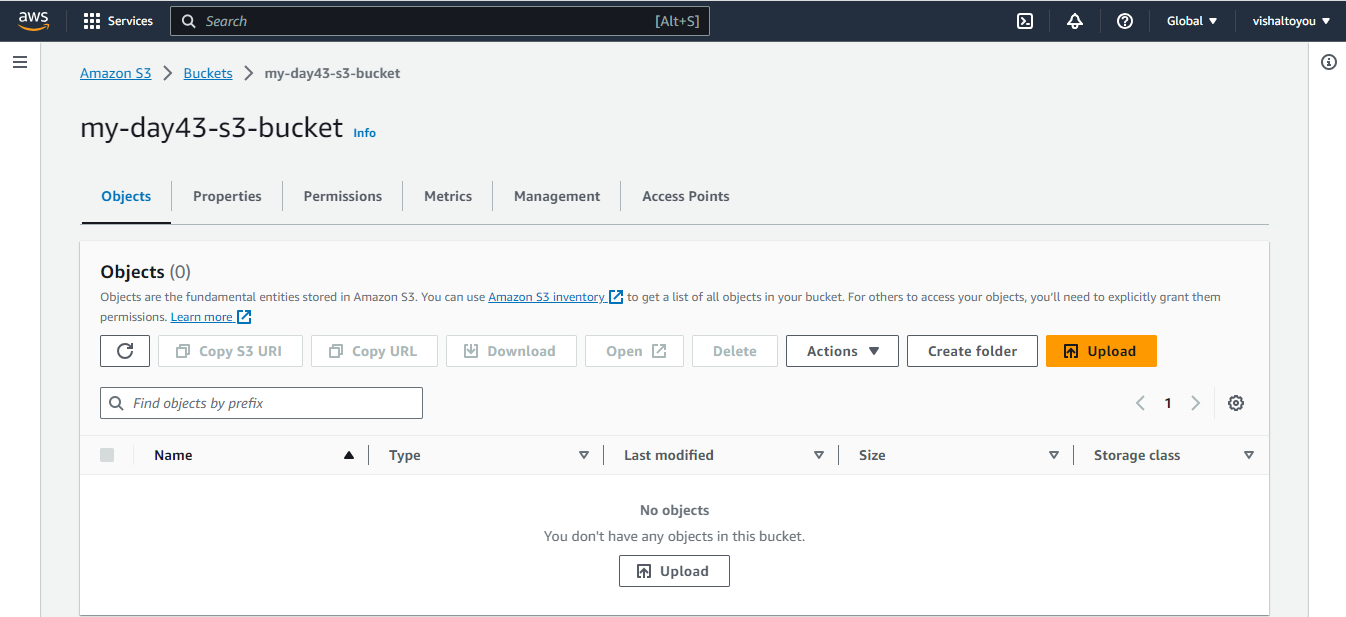
In the AWS Management Console, navigate to the S3 service.
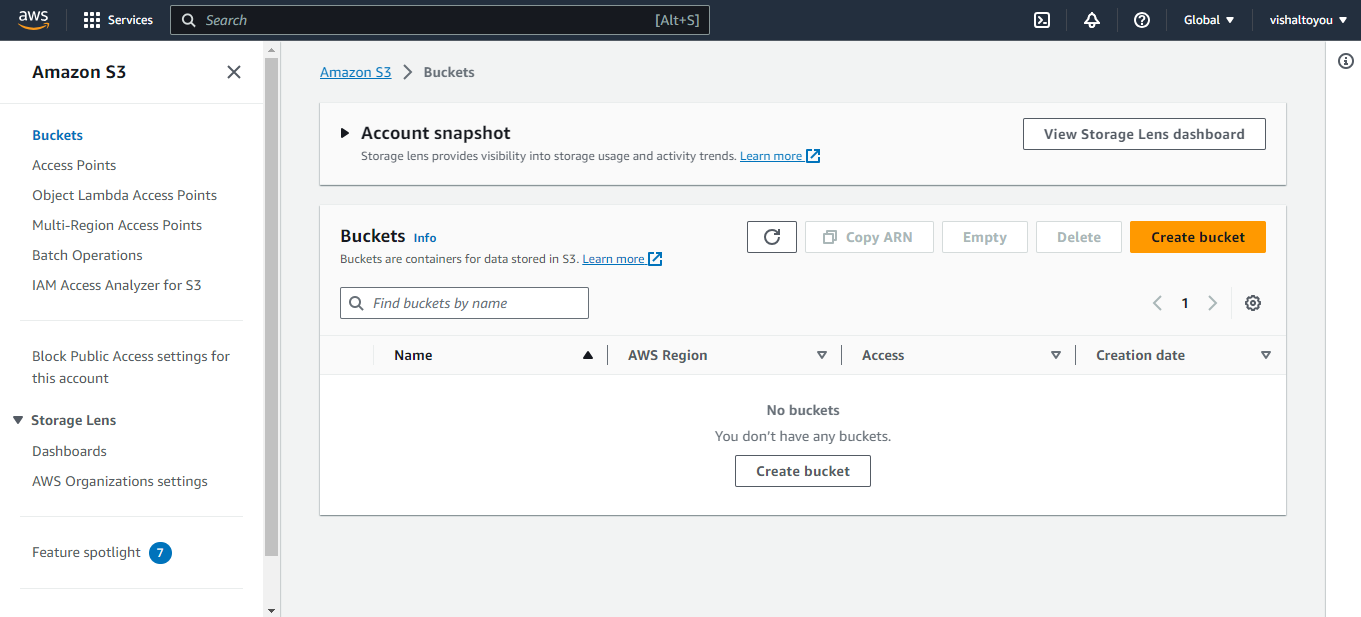
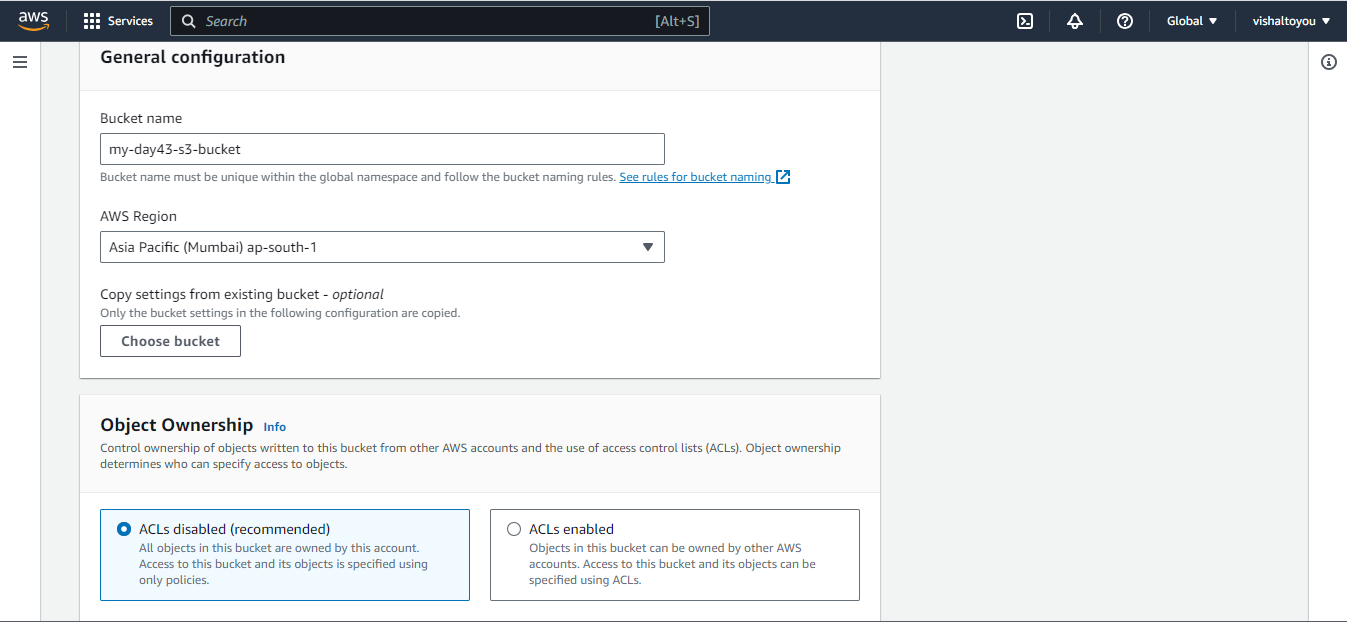
Create a new S3 bucket, giving it a unique name.
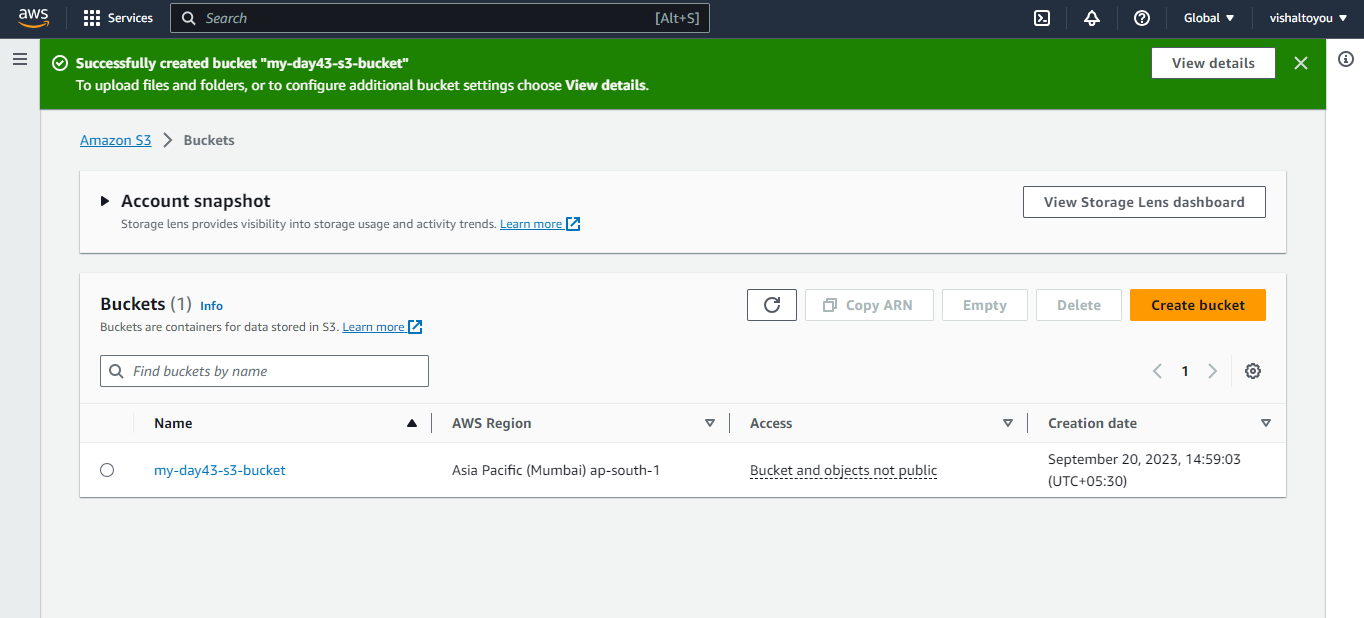
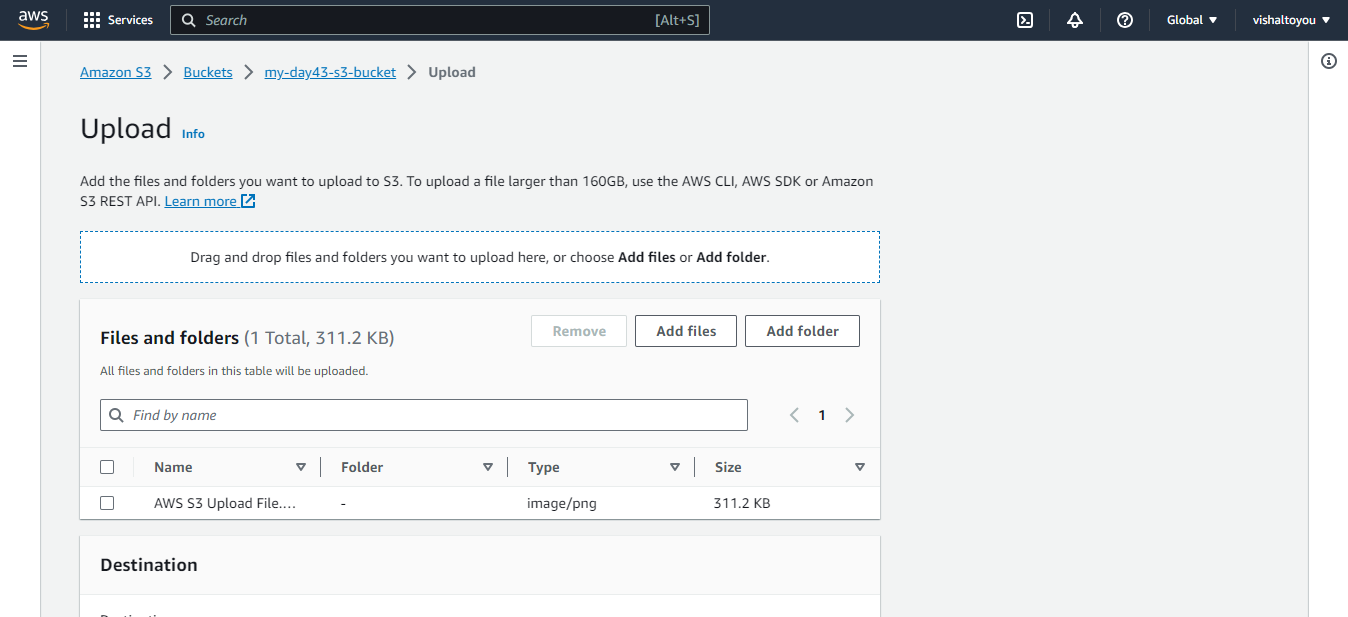
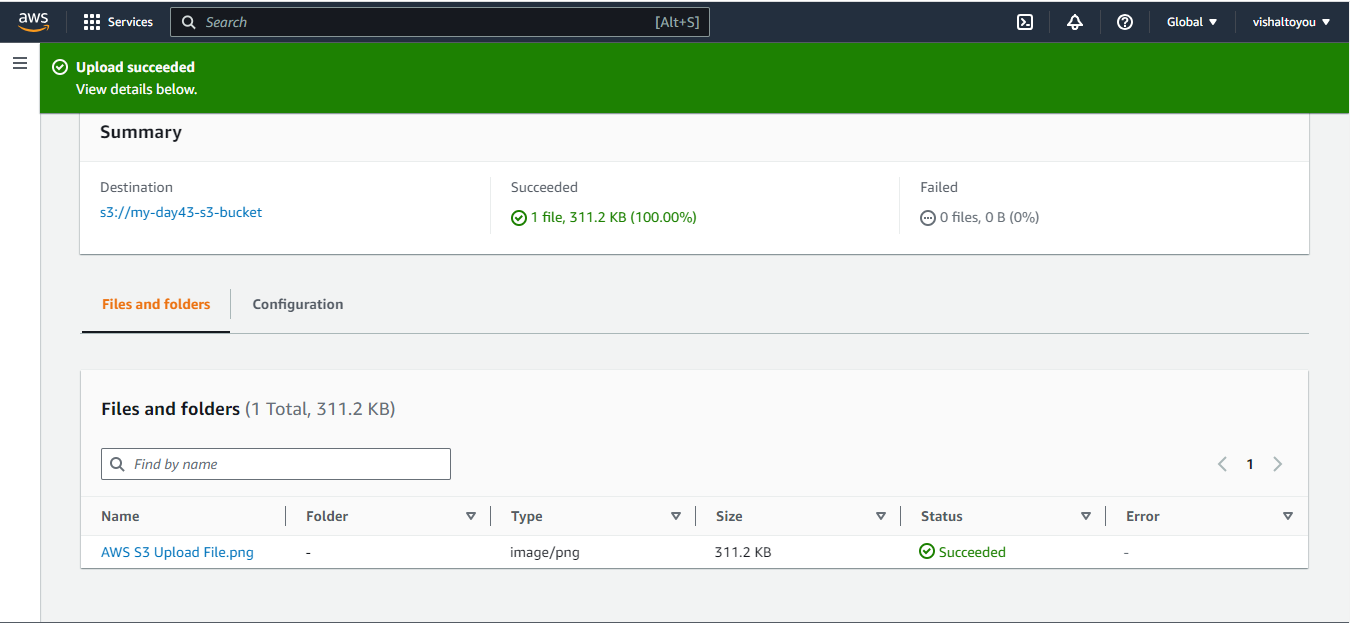
Upload a file to the bucket using the web interface.
🔰Step 3: Access the File from the EC2 Instance using AWS CLI
It's time to access the file we uploaded to the S3 bucket from our EC2 instance using AWS CLI:
SSH into your EC2 instance.
Install the AWS CLI if it's not already installed by running command
 sudo apt-get update
 sudo apt-get install awscli -y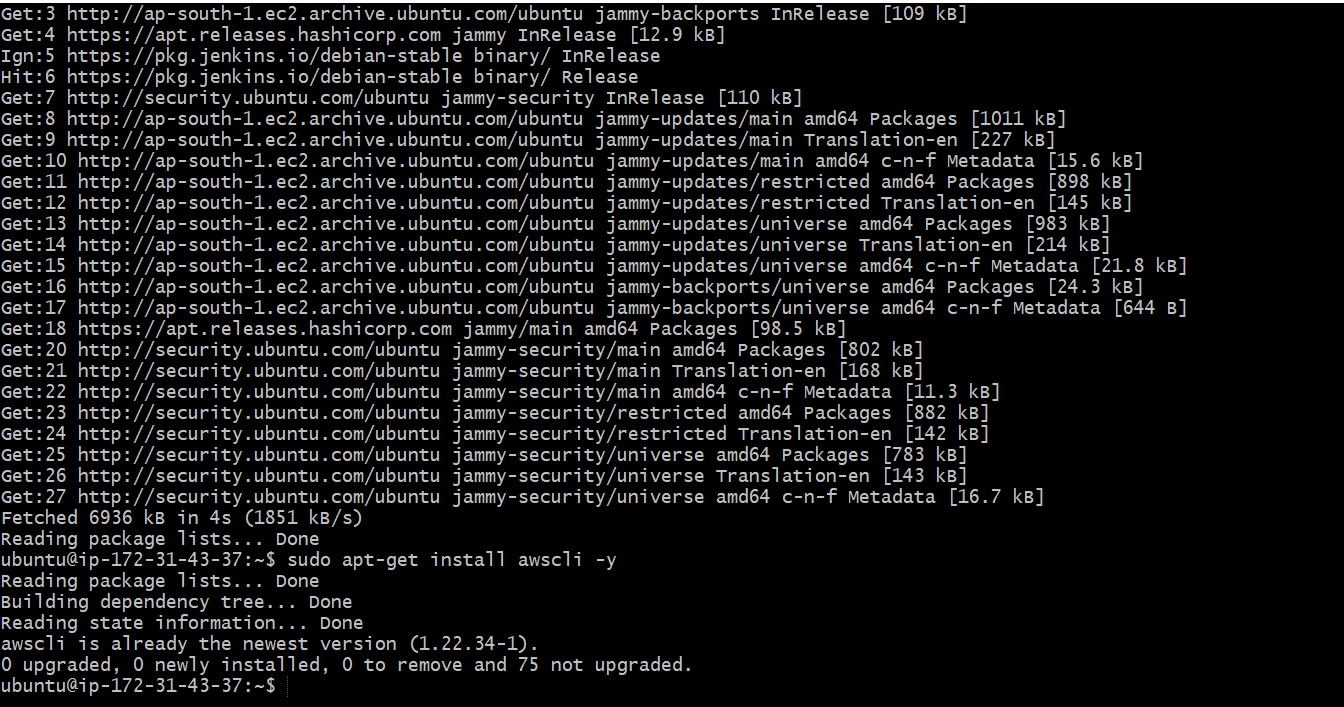
Check the AWS CLI version by using command
aws --version
Configure AWS CLI with your IAM user credentials using the
aws configurecommand.aws configureUse the command to download the file from the S3 bucket to your EC2 instance.
aws s3 ls
📃Task-02: Advanced S3 Operations with AWS CLI
📌Step 1: Create a Snapshot of the EC2 Instance
Let's take a snapshot of our EC2 instance and use it to launch a new EC2 instance:
In the AWS Management Console, navigate to the EC2 service & click on Snapshots.
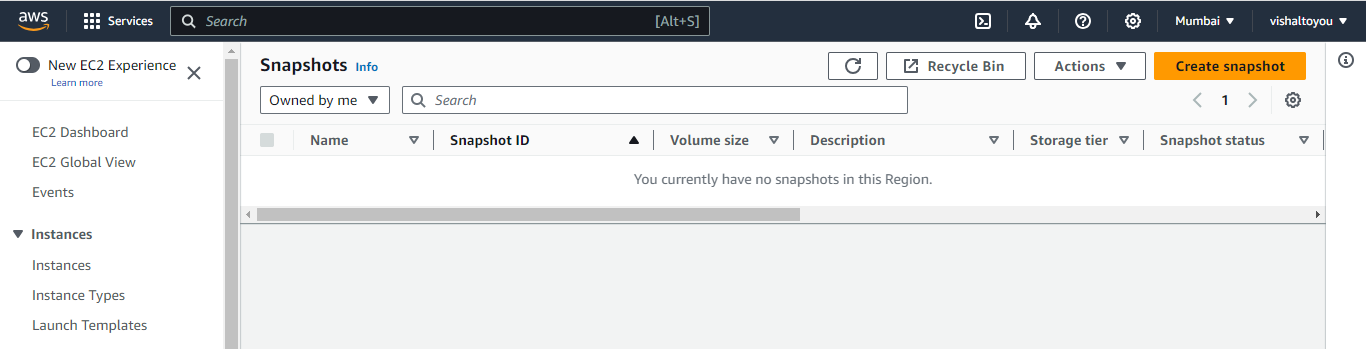
Click on Create Snapshot and Select the EC2 instance that you want to create a snapshot.
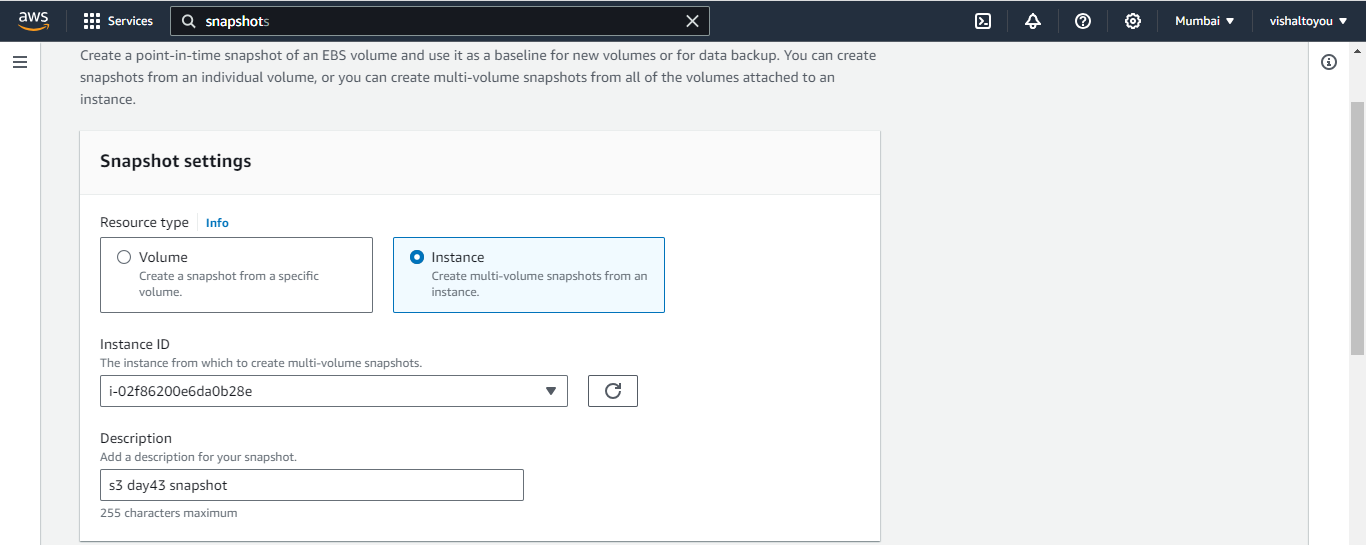
Click on Create snapshot

Click on the Actions button present on the right side and choose Create Image from Snapshot option from the drop-down menu.
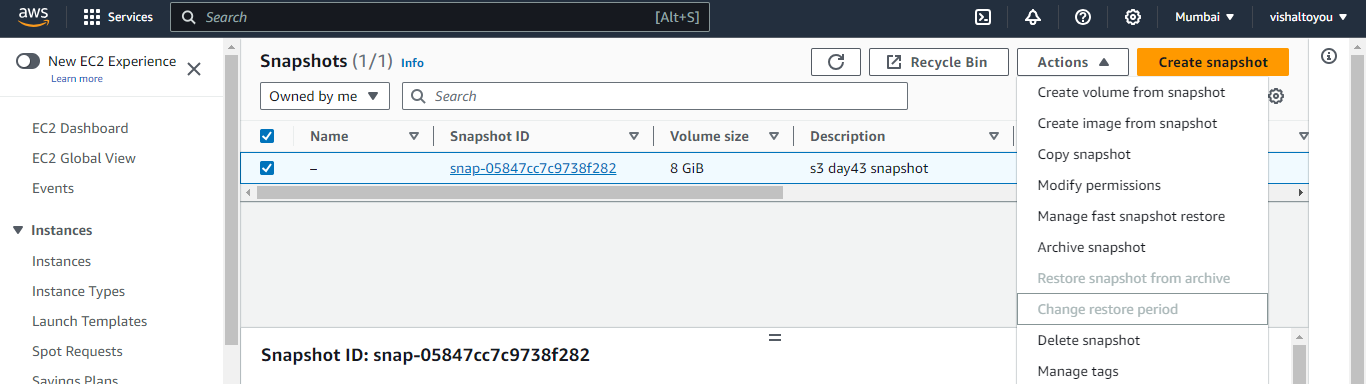
In the Create Image from snapshot window, enter a name and description for the image & click on Create image.
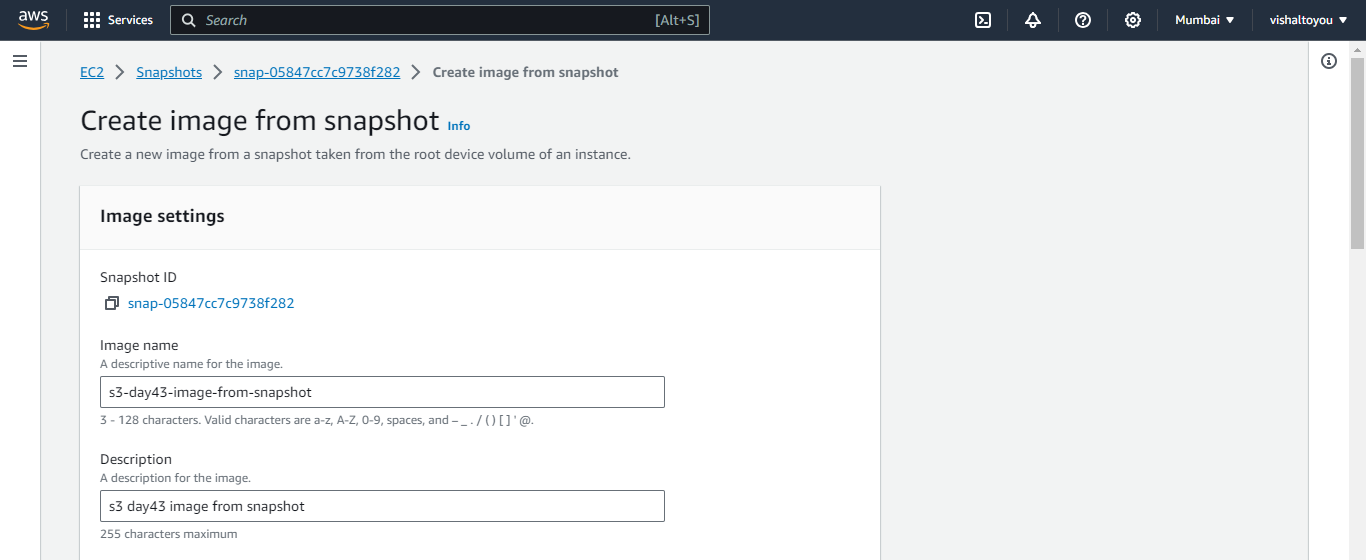
Check Amazon Machine Images (AMIs) , check whether image is created or not
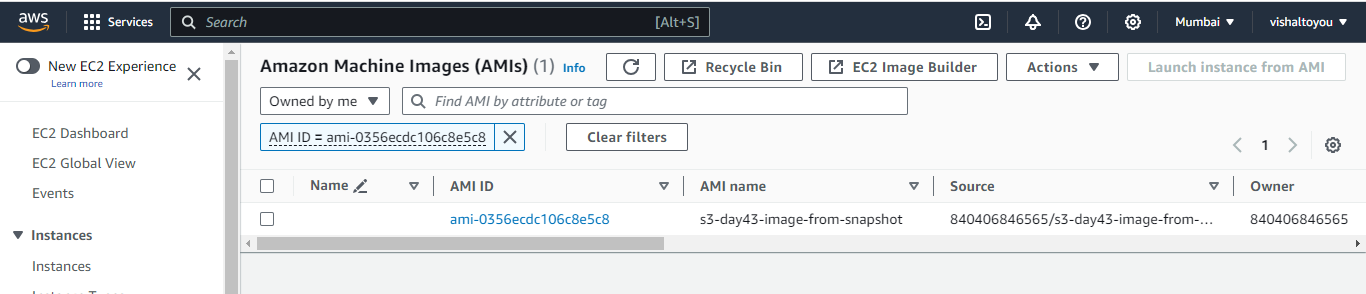
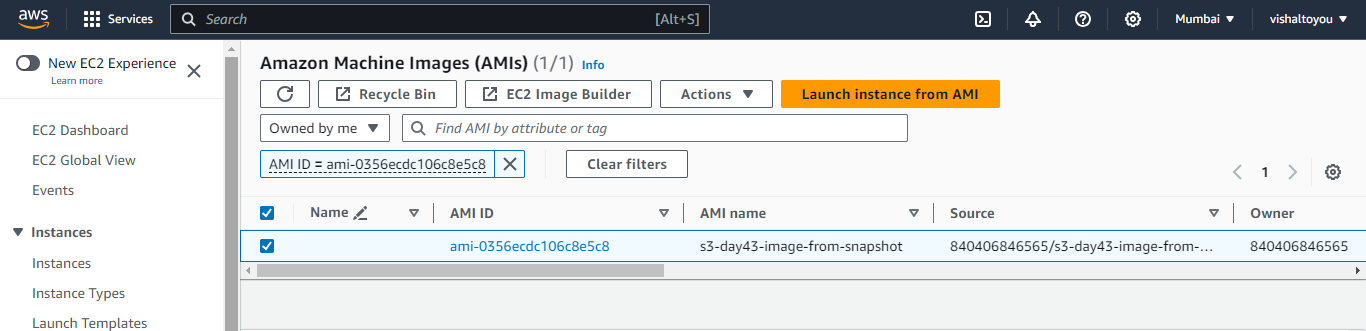
Click on Launch instances from AMI
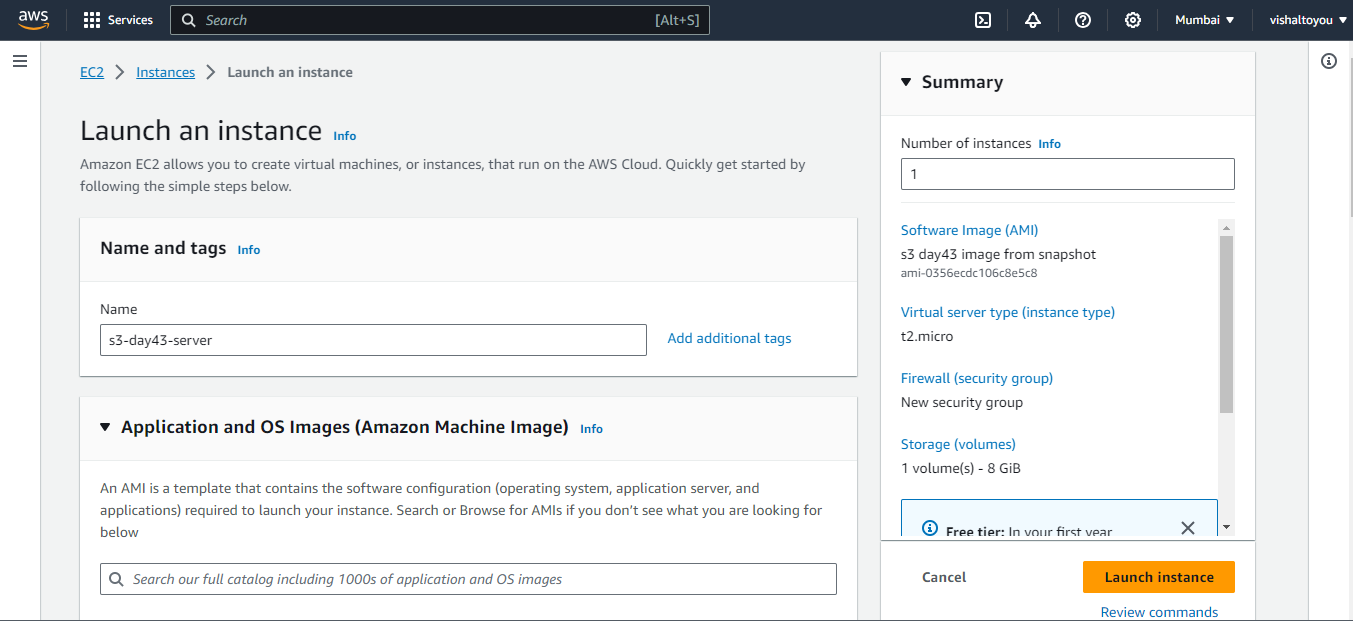
📌Step 2: Download a File from the S3 Bucket
Now, let's use AWS CLI to download a file from the S3 bucket we created earlier:
Connect the instance using SSH and use this command
aws s3 cp s3://bucket-name/filename . # This command downloads a file from an S3 bucket to your local file system.
📌Step 3: Verify the Contents
To ensure that the file contents are the same on both EC2 instances, you can compare them using standard file comparison tools or commands.


❄Useful AWS CLI Commands for Amazon S3
Here's a list of commonly used AWS CLI commands for Amazon S3:
aws s3 ls: Lists all S3 buckets in your AWS account.aws s3 mb s3://bucket-name: Creates a new S3 bucket with the specified name.aws s3 rb s3://bucket-name: Deletes the specified S3 bucket.aws s3 cp file.txt s3://bucket-name: Uploads a file to an S3 bucket.aws s3 cp s3://bucket-name/file.txt .: Downloads a file from an S3 bucket to your local file system.aws s3 sync local-folder s3://bucket-name: Syncs the contents of a local folder with an S3 bucket.aws s3 ls s3://bucket-name: Lists the objects in an S3 bucket.aws s3 rm s3://bucket-name/file.txt: Deletes an object from an S3 bucket.aws s3 presign s3://bucket-name/file.txt: Generates a pre-signed URL for an S3 object, granting temporary access to the object.aws s3api list-buckets: Retrieves a list of all S3 buckets in your AWS account using the S3 API.
By mastering these commands, you'll have the power to manage your S3 resources programmatically, automating various tasks and integrating S3 storage into your DevOps workflows.
👋Conclusion
In today's blog post, we've explored how to interact with Amazon S3 programmatically using the AWS CLI.
We've covered the essential steps to set up an EC2 instance, create an S3 bucket, and perform various S3 operations using AWS CLI commands.
With these skills, you can efficiently manage and automate your S3 resources, making your DevOps tasks more streamlined and efficient.
Keep exploring and experimenting with AWS to deepen your cloud computing expertise👍
Happy learning🎉 & may your cloud journey be filled with exciting discoveries!🎊
Thank you for joining us on this exciting Day 43 of the 90 Days of DevOps challenge. I hope you found the information helpful and insightful.💥
Stay tuned for Day 44 as we delve deeper into AWS and uncover more of its incredible capabilities.✌
So please keep yourself updated with my latest insights and articles on DevOps 🚀 by following me on :
Hashnode: vishaltoyou.hashnode.dev
LinkedIn: linkedin.com/in/vishalphadnis
About the author
Experienced QA professional with a passion for manual and automation testing. Proficient in DevOps practices, ensuring seamless integration and continuous delivery. Dedicated to ensuring top-notch software quality and efficiency. Eager to contribute my skills to Hashnode's vibrant tech community. Let's collaborate and create exceptional experiences!
Comments
Join the discussionNo comments yet. Be the first to comment.


