Day 9:Streamlining DevOps Collaboration: Exploring Git & GitHub for Efficient Software Version Control🚀
Day#9 of 90 Days Of Devops Challenge

👋Introduction
In the world of software development, version control is vital for managing code changes, teamwork, and project integrity. Git, a distributed version control system, has transformed how developers handle code repositories. Alongside GitHub, a popular web-based hosting service, developers can harness powerful version control and collaborate effortlessly.
So, Let's explore Git and GitHub, their importance in DevOps, and follow a step-by-step guide to creating repositories, connecting them, and pushing changes to GitHub. Get ready to dive into the world of efficient and collaborative coding!
💾What is Git and why is it important?
Git is a distributed version control system that empowers everyone to track changes, manage codebase history, and collaborate effectively on projects. Its importance lies in its ability to provide version control, enabling users to:
Track changes: Git allows you to monitor modifications to your project over time, making it easy to see what was changed and by whom.
Collaborate effectively: Multiple people can work together on a project, merging their changes seamlessly, and resolving conflicts efficiently.
Maintain project integrity: By using Git, you can go back to previous versions of the project if something goes wrong, reducing the risk of irreversible errors and ensuring project stability.
In a nutshell, Git is a powerful tool for everyone to work together, track changes, and maintain the integrity of projects throughout their development.
🔀Difference between Main Branch and Master Branch?
| Aspect | Main Branch | Master Branch |
| Purpose | The main branch is like the primary version of your project. It's where the latest stable code resides, and any changes made to your project start from here. It's like the central starting point. | The master branch also serves the same purpose as the main branch. Historically, it was the default name given to this central branch. |
| Default Name (Historical) | "Master" | "Master" |
| Updated Name (Recent) | "Main" | N/A (Historical Name still used in some repositories) |
| Reason for Updated Name | The change to "Main" was made to avoid any unintentional meanings that might be offensive or hurtful to some people. It's about making sure everyone feels included and comfortable. | N/A (Some repositories still use the old name) |
| Community Preference | More and more people are using the name "Main" because it's a more friendly and inclusive choice. | Some people and projects still prefer to use "Master" as the name. |
| Functionality and Characteristics | Both branches work the same way and do the same things. They are like two different names for the same concept. | They have the same features and behave in the same manner. |
| Migration to "Main" Branch | Many projects have switched to using "Main" as the default name for their main branch. | Some projects haven't made the change yet and still use "Master" as the default. |
| Official GitHub Recommendation | GitHub, a popular platform, suggests using "Main" as the default name for new projects because it promotes inclusivity and is more welcoming to everyone. | GitHub allows users to choose any name they prefer for their main branch. |
In simple terms, both "Main" and "Master" branches are like the central starting points for your project, where the latest stable code is kept. The reason for using "Main" instead of "Master" is to make sure that everyone feels welcome and comfortable, without using any words that might unintentionally hurt or exclude someone. Many people and projects are choosing the name "Main" to be more inclusive, but some still use the old name "Master." The good thing is, no matter what the name is, both branches work the same way and do the same job!
🔀Difference between Git and GitHub?
| Aspect | Git | GitHub |
| Definition | Git is like a superhero version control system! It's a tool that developers use on their own computers. It helps them track changes, create special storage spaces called repositories, and keep a history of all the changes they make. One cool thing about Git is that it works even when there's no internet connection. So developers can work on their code offline and later connect to share their changes. | GitHub is like a magical cloud where developers can save their superhero repositories remotely. It's a web-based hosting service that works together with Git. With GitHub, developers can store their repositories online and share their code with other developers all over the world. It's a place where they can collaborate, track issues, manage projects, and even review each other's code. It's a team playground! |
| Location | Git lives on the developer's personal computer. | GitHub is a cloud-based platform accessible through a web browser. |
| Usage | Developers use Git to work on their code locally and track changes efficiently. | Developers use GitHub to save their Git repositories in the cloud and collaborate with others. |
| Connection | Git operates offline, so developers don't need the internet to work with it. They can connect later to share their changes. | Developers use the internet to access GitHub and store their repositories remotely in the cloud. |
| Additional Features | Git provides core version control functions like creating branches, committing changes, and maintaining history. | GitHub extends Git's capabilities with features like issue tracking, project management, code reviews, and collaboration tools. |
| Collaboration | Git is more suitable for individual developers working on their own projects or small teams working together locally. | GitHub brings developers together on a global scale, facilitating collaboration among multiple developers, teams, and open-source communities. |
In a nutshell, Git is like the superhero version control system that developers use on their computers to track changes and maintain a code history offline. GitHub is the magical cloud-based platform where developers save their repositories remotely and collaborate with others worldwide, using additional features like issue tracking, project management, and code reviews. Together, Git and GitHub make software development a fun and powerful team endeavor!
🤔How to create a new repository on GitHub?
Creating a new repository on GitHub is as easy as pie! Just follow these simple steps:
Sign in or Sign up: If you already have a GitHub account, sign in. If not, create a new account—it's quick and free on https://github.com/
Find the "+" sign: Once you're logged in, look for the "+" sign in the top-right corner of the page.
Click "New repository": Click on that "+" sign, and a menu will pop up. Choose "New repository" from the menu.
Name your repository: Give your new repository a cool name that describes what it's all about. You can be creative!
Add a description (optional): If you want to let others know what your repository is for, you can add a brief description.
Public or Private: Decide whether you want your repository to be visible to everyone (public) or just you and some friends (private).
Optional extras: You can also choose to add a README file (a cool way to introduce your project), a .gitignore file (to ignore certain files), and even a license to let others know how they can use your code.
Click "Create repository": Finally, when you're all set, click that button, and voilà! Your new repository is ready to go.
Now you have a fantastic place on GitHub to store your project, collaborate with others, and show off your coding skills! Happy coding! 🚀
📂Difference between local & remote repository? How to connect local to remote?
| Aspect | Local Repository | Remote Repository |
| Location | The local repository is on your computer. | The remote repository is stored on a server or hosting service, usually in the cloud. |
| Accessibility | You can access the local repository directly on your computer. | Remote repositories are accessed over the internet through a hosting service like GitHub. |
| Usage | Developers work with the local repository on their computers to make changes, commit code, and track history. | Remote repositories are used for collaboration and sharing code with others. Multiple developers can work together on the same remote repository. |
| Version Control | The local repository allows you to track changes to your code and maintain a complete history of alterations. | Remote repositories provide a centralized location to store and manage changes made by multiple developers, ensuring everyone is working on the latest version. |
| Connecting Local to Remote | To connect a local repository to a remote repository, you add the remote repository's URL to your local repository using Git commands. This enables you to push your local changes to the remote repository and pull changes from others. | You can create a remote repository on a hosting service like GitHub and then use Git commands to link your local repository to the remote one. This way, your local changes can be synchronized with the remote repository for collaboration. |
In simple terms, the local repository is on your computer, where you work on your code and keep track of changes. On the other hand, the remote repository is stored on a server, usually in the cloud, and allows multiple developers to collaborate on the same project.
To connect your local and remote repositories, you use Git commands to add the remote repository's URL to your local repository. This way, you can push your local changes to the remote repository and also pull changes made by others in the remote repository to stay updated and work together as a team.
To connect your local repository to a remote repository, you need to add the remote URL using the following command:
git remote add origin <remote-url>
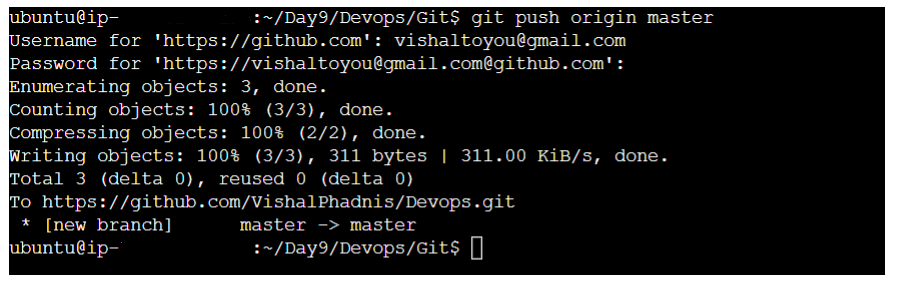
After adding the remote, you can push your local repository's changes to the remote using the following command:
git push -u origin master
Here, master is the name of the branch you want to push. If you have a different main branch like main, dev,rc use that branch's name instead.
Now, let's move to the task questions:
📋Task-1: Set your user name and email address
Open a terminal (or Git Bash on Windows) and run the following commands, replacing "Your Name" and "usermail@example.com" with your desired name and email address:
git config --global user.name "Your Name"
git config --global user.email "usermail@example.com"
📋Task-2: Create a repository named "Devops" on GitHub
Sign in to your GitHub account & Click on the "+" sign in the top-right corner and select "New repository"

Choose the name "Devops" for your new repository.
Optionally, describe the repository to explain its purpose.
Select whether you want the repository to be public or private.
Optionally, initialize the repository with a README file.
Click on "Create repository" to create the "Devops" repository on GitHub'
📋Task-3: Connect your local repository to the repository on GitHub
Add the remote repository URL (the URL of your "Devops" repository on GitHub) to your local repository using the following command:
git remote add origin <remote_repository_url>

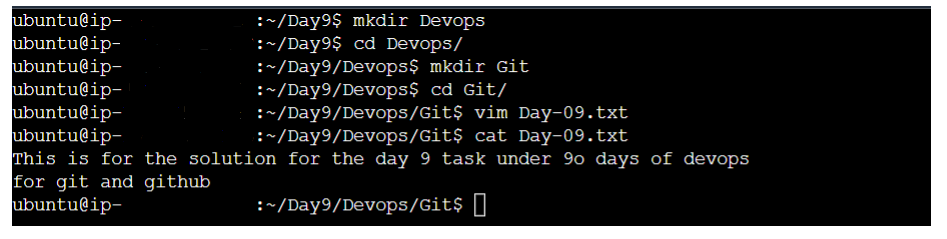
📋Task-4: Create a new file in Devops/Git/Day-02.txt & add some content to it
In your local repository's root folder, create a new directory named "Devops".
Navigate into the "Devops" directory and create a subdirectory named "Git".
Navigate into the "Git" directory and create a new file named "Day-02.txt" & add content in it and save.
📋Task-5: Push your local commits to the repository on GitHub
After making changes to your local repository, commit those changes
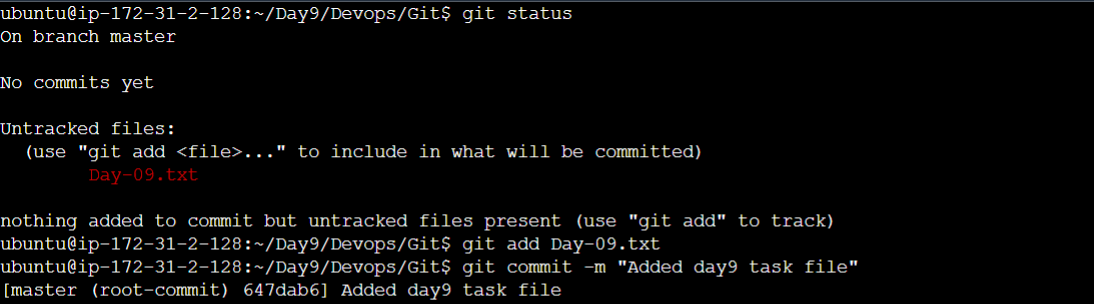
Push them to the remote repository on GitHub
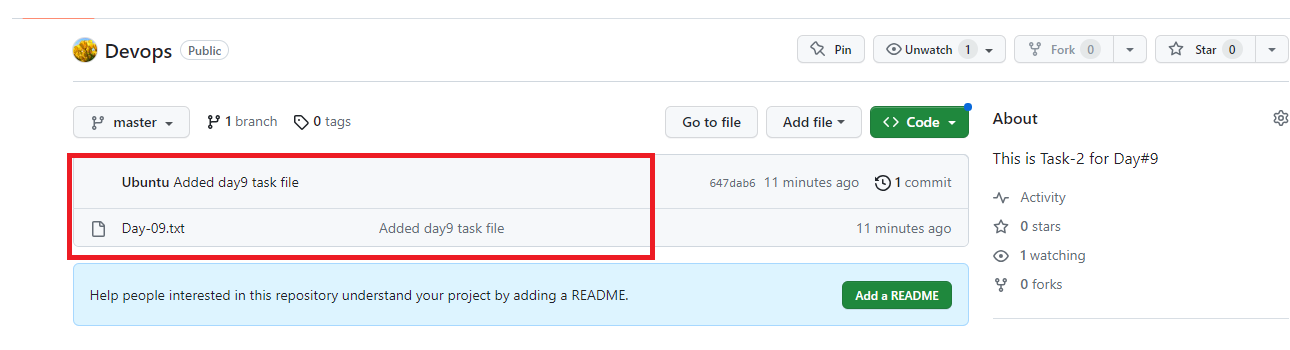
Check the latest on the GitHub repository
🎉Conclusion
In the world of DevOps and collaborative software development, Git and GitHub are essential tools for modern engineers. Git empowers developers with powerful version control, enabling effective change management and code collaboration. GitHub extends Git to the cloud, offering a platform for hosting and sharing repositories, managing projects, and engaging in open-source communities. Following this blog's steps, DevOps engineers can confidently set up user information, create, connect, and contribute to GitHub projects. Mastering Git and GitHub empower efficient collaboration, making developers valuable contributors to software development practices. With these skills, developers unlock the potential to work seamlessly, collaborate, and improve code quality in the ever-evolving world of software development.
Happy git-ing!🚀🚀
Thank you for taking the time to read this blog. I hope you found the information helpful and insightful. So please keep yourself updated with my latest insights and articles on DevOps 🚀 by following me on :
Hashnode: vishaltoyou.hashcode.dev
LinkedIn: linkedin.com/in/vishalphadnis
So, Stay in the loop and stay ahead in the world of DevOps!
Happy learning 🚀😊🐧📦🔧🛠️💻💼🔍📈🚀🌟📊📚
About the author
Experienced QA professional with a passion for manual and automation testing. Proficient in DevOps practices, ensuring seamless integration and continuous delivery. Dedicated to ensuring top-notch software quality and efficiency. Eager to contribute my skills to Hashnode's vibrant tech community. Let's collaborate and create exceptional experiences!
Comments
Join the discussionNo comments yet. Be the first to comment.


